
The purpose of this post series is to help readers learn about APEX 5 IRs, in two parts:
• Part 1 – APEX 5 Interactive Report new and enhanced Action Menu and support features.
• Part 2 – APEX 5 Interactive Report CSS and JavaScript changes, and how these changes impact existing APEX Interactive Reports.
• Part 3 – APEX 5 Interactive Report Settings and Performance – Learn how declarative IR settings manifest in SQL query statement changes that may significantly influence performance. This post, inspired by PEter Raganitch’s KScope 2015 presentation, remoinds developers to be aware of the impact of their selections.
BACKGROUND
Introduced in APEX 3.2, IRs have become the default report option for APEX applications. IRs enable developers to deliver a wealth of end user functionality with a minimum of effort. To build an IR the developer enters a few keystrokes, a base SQL query, some optional declarative settings and voila – the end users gets a fully-operational interactive set of data from which they can apply filters, rearrange columns, highlight, sort, chart, group by and otherwise slice and dice their data.
Note: Most developers and end users are familiar with the search, filter, sort and other interactive features. The paper assumes readers are familiar with pre-APEX 5 IR’s. For those who are not, a full description can be found in this Oracle Technet (OTN) introduction to APEX IRs: http://www.oracle.com/technetwork/testcontent/irrs-083031.html
Every APEX release since 3.2 has added more features, most noticeable in the Action Menu. In addition, many developers have added customizations via CSS to improve appearance, dynamic actions to mimic MS Excel behavior, and otherwise extended standard IR functionality. Developers have made IR customizations through dynamic actions, plugins, JavaScript frameworks and other bits of code to effect the desired changes. In general, we APEX developers can be quite creative in delivering enhanced functionality to our end users!
APEX IR
As usual for a new APEX release, APEX 5 introduces new IR features: new and enhanced Acton Menu features, some cosmetic uplifts and some report management improvements. However, with APEX 5, the major IR changes are behind the scenes – APEX IRs have been rebuilt from the inside out. Both the “inside” changes – the JavaScript engine – and the “outside” changes- CSS classes and Ids – are significant. The important note for developers is that because of this re-architecting, even when developers used the APEX-standard dynamic action or plugin frameworks, if the customization code references the pre-APEX id’s and class elements, the customization code will need to be refactored to upgrade.
Why so many changes, and why such a drastic change? Several reasons. The revised IR code allows for:
• Multiple IRs on one page (perhaps the biggest new feature, to be described in detail in later sections of this paper)
• Modal dialogs
• The Universal Theme and Theme Roller customizations
• APEX overall usability and accessibility
These features, particularly multiple IRs on a single page, were just not possible with the pre-APEX IR architecture. The new code makes sense, when one considers that multiple IRs on a single page was not possible with the legacy IR structure – something had to change. With all of the other IDE and end-user interface changes in APEX 5, the IR changes make sense.
The downside is, developers who have tooled outside of the APEX sandbox must now invest some time in upgrading to the new IR structure and JavaScript. All IR customizations made outside of the standard APIs may not work in APEX 5. Developers who have made such changes will need to refactor their customizations.
The following sections discuss APEX 5 IRs in detail. The KNOW YOUR USERS section applies to all developers. The PAGE DESIGNER section gives an overview of the Page Designer, the new IDE for building APEX apps. The NEW FEATURES section reviews key new features that developers and end users can leverage upon upgrade. In Part 2, the CHANGES section addresses the CSS and JavaScript changes such developers need to know to plan their upgrade to APEX 5.
KNOW YOUR USERS
IRs are very powerful in that they deliver a lot of end user functionality with minimal developer effort. However, it is the developer’s responsibility to maximize IR effectiveness by using the declarative settings to tailor the IR to end user needs. This means the developer needs to be aware of such things as overall security needs, how user use the data set, which Action Menu features should be prohibited or restricted, how much training end users will require, which download options are required, and how users are likely to use Saved reports. It is the developer’s job to prepare and deliver the appropriate IR query and action set to support them.
In short, Know Your Users. Watch what they do, because what they really do is not necessarily what they say the do or need. Deliver the functionality they need, restrict the features they should not have, and ensure the data set they receive is useful to them.
PAGE DESIGNER
Perhaps the most impressive new feature of APEX 5 is the Page Designer, an alternative to the Component View and Tree View modes of APEX development.
The Page Designer is a totally redesigned development environment for building APEX. It allows the developer to stay in “edit mode” in one window while viewing the results of changes in a separate window. This eliminates opening and closing edit dialogs – the Page Designer is always open. This new APEX IDE drastically changes the flow of how one develops in APEX, and in most cases streamlines the process. Before addressing APEX 5 IR new features, it is important to be a bit familiar the Page Designer. Figure 1 illustrates the APEX 5 Page Designer.

Page Designer, the new building interface for APEX 5
Figure 1 – APEX 5 Page Designer
The key features are:
• Left Pane – The Tree pane. This pane contains four views, Rendering, Dynamic Actions, Processing and Shared Components. Each view contains a tree structure of the components of that category on the page, and allows for selection of components and Attributes of those components. Selections here open the corresponding property edit dialogs in the right-pane Property Editor region.
• Center Pane – The Grid Layout pane. This pane is a visual representation of the relative location of components on the page. One can rearrange components on the page by drag and drop of selected elements in this region. One can add components by dragging from the component Gallery at the bottom of the page and dropping onto the layout grid.
• Right Pane – The Property Editor. This is where one edits properties of the components selected in the left, Rendering pane. The same attributes for each component type exists as in earlier APEX versions, this is simply a new interface for editing them.
For a better description of the Page Designer, see the APEX 5 Application Builder User’s Guide, section 2.2.2.1. This is accessible from the Help menu of the APEX 5 Early Adopter.
It is easiest to understand and learn the Page Designer by diving in and working with it. While the Page Designer is a totally new development interface, this author found the transition quite smooth. The most difficult aspect was finding attribute locations in the Property Editor. To assist in this I developed the habit of using the Close All button to reduce the Property Editor to simple list, from which it is easier to find the section of interest.
The other change is operational – one makes changes in the Page Designer, then clicks Save, then Run. Run opens a version of the page in a separate window (or in a separate tab, depending on one’s browser settings. Thus a developer can have the Page Designer, the edit interface, open in one window and the current version of the app open in a different window.
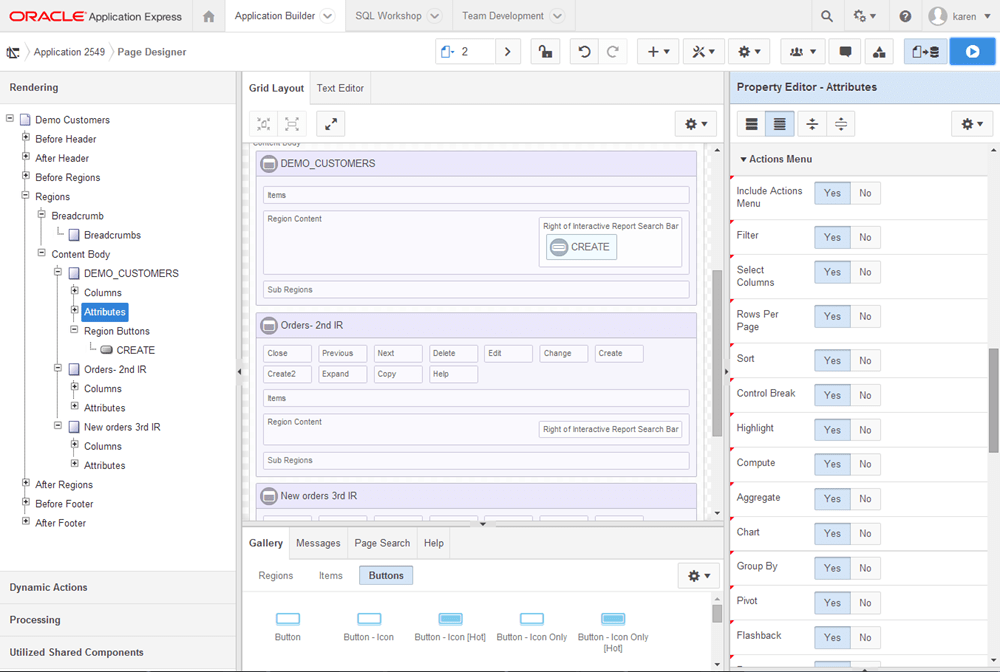
Page Designer, Interactive Report Settings
Figure 2 – APEX 5 Interactive Report Region and Property Editor in Page Designer

Fig. 3 – Action Menu in Page Designer
Figure 3 – Action Menu Attributes in Page Designer
Specific to IRs, one needs to be familiar with how the IR properties appear in Page Designer ,to be able to find where to make the appropriate changes. This author found the transition quite easy, though it took a few minutes to acclimate. To get to IR properties, click to open the IR in the Rendering region in the left, Tree pane, or click on the IR region in the center Grid Layout pane. Figure 2 shows the IR Regions and Property Editor in Page Designer. Figure 3 shows the Action Menu Attributes in the Page Designer which displays in the right, property panel.
The recommendation is to spend a few minutes in the Page Designer to become familiar with its operation. Then spend a few moments specifically on an IR. Locate the Columns and Attributes in the Tree panel, then locate the corresponding Property Editors in the right panel. Don’t forget to Save (which the Page Designer will remind you of) and Run, both buttons located at the top right of the page. Also, become familiar with jumping from the Page Designer to your application is a separate page or window.
Note: Developers used to achieve as similar simultaneous builder-app window-mode by running the APEX Builder in one browser (i.e. Chrome) page, and running the application in a different browser (i.e. Friefox) page. There are other ways to achieve the same with virtual server names. We no longer have to do this. In fact, when we do, we then have two Page Designer windows and two app windows – this author found it gets confusing quickly. We still need to test in multiple browsers, but it is no longer essential to use multiple browsers or other tricks to have simultaneous develop and run windows. A big plus!
NEW FEATURES
APEX 5 introduces a new IR look-and-feel, improved usability and accessibility features, new and enhanced Action Menu features. The following sections detail the most notable new features that developers and end users should be aware of.
MODERNIZED INTERFACE
The IR user interface has been updated to be “cleaner” and have “more semantic HTML markup”. The cosmetic changes are in line with the new Universal Theme. APEX 5 IRs are responsive, accessible, and easily customized via Template Options and Theme Roller. All popup windows are now modal. All icons are now scalable vector icons. The colors of the icons and popups will follow that of the theme in use.
Column heading dialogs, shown in Figure 4, are now activated by a click. The edit dialogs of the Control Panel are now improved for easier – fewer clicks – edits. All of these cosmetic and usability improvements are apparent and appreciated after a few minutes of working with an APEX 5 IR.
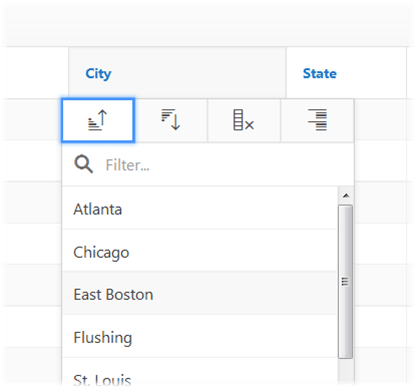
Figure 4 – APEX 5 IR Column Heading Menu
.
FLOATING HEADERS
At last, APEX IRs have declarative “floating headers”, a feature much requested by Microsoft Excel (MS Excel) users. This new feature allows a developer to declare that column headings stay fixed at the top of the Page the top of the Region, or scroll with the data (None) as the user scrolls down the page. Figure 5 illustrates fixed headers – fixed to the page – in action (as best one can in a static page). The headers for both IRs stick to the top of the page as the user scrolls through the IR rows. Figure 6 shows the Fixed To attribute options in the Property Editor, used to set the Fixed To column heading behavior.
Alas, the corresponding Fixed Column feature, another favorite of MS Excel users, is not part of APEX 5.

Fig. 5 – Floating Headers
Figure 5 – Floating Headers (“Fixed Headers”)

Fig. 6 – Fixed Header Attributes
Figure 6 – Fixed Header Attributes
ENHANCED GROUP BY
The GROUP BY action now allows up to 8 Group By columns. This is 3 more Group By columns that APEX 4.2. The Group By modal dialog is shown in Figure 7. Figure 8 shows access to edit an existing Group By pane and the Group By button to toggle between the Group By pane and other IR views (in this example the main tabular view and a Pivot view).
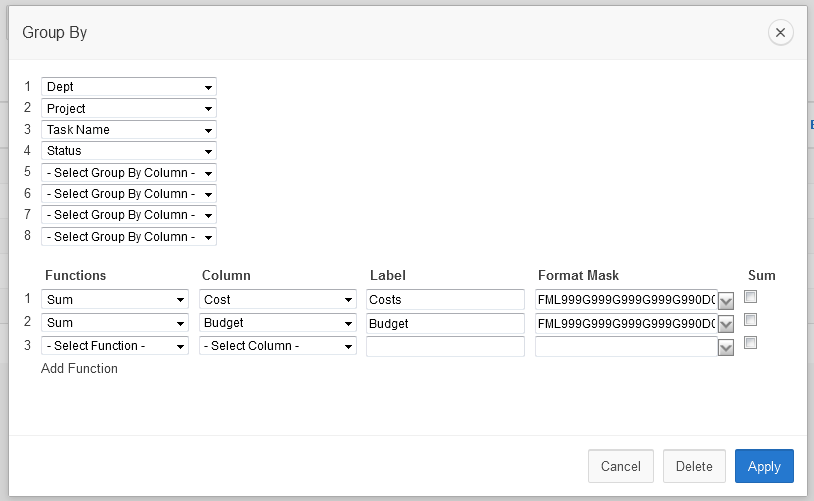
Fig. 7 – GROUP BY Dialog
Figure 7 – APEX 5 Group By Dialog
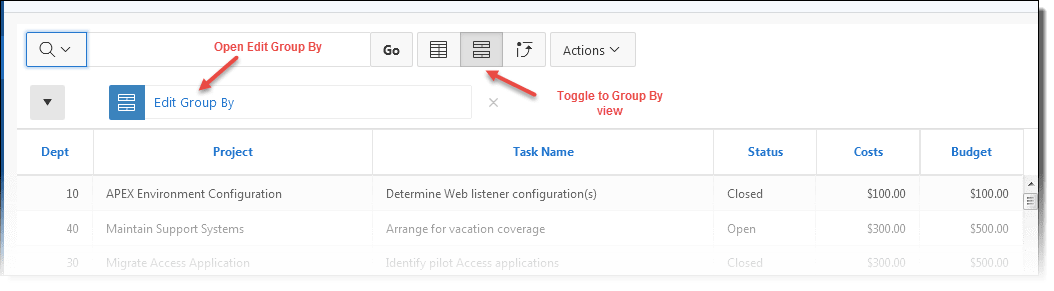
Fig. 8 – GROUP BY Options
Figure 8 – Group By Options in APEX 5 IR
As with other optional report views, formatting options on the Group By view are restricted, in this case to Group By and Group By Sort. Figure 9 shows the limited set of format actions for a Pivot report. As always, the Filter (shown), Rows per Page, Flashback, Save Report, Reset, Help and Download options, if declared and authorized, are still available in the Group By report view.
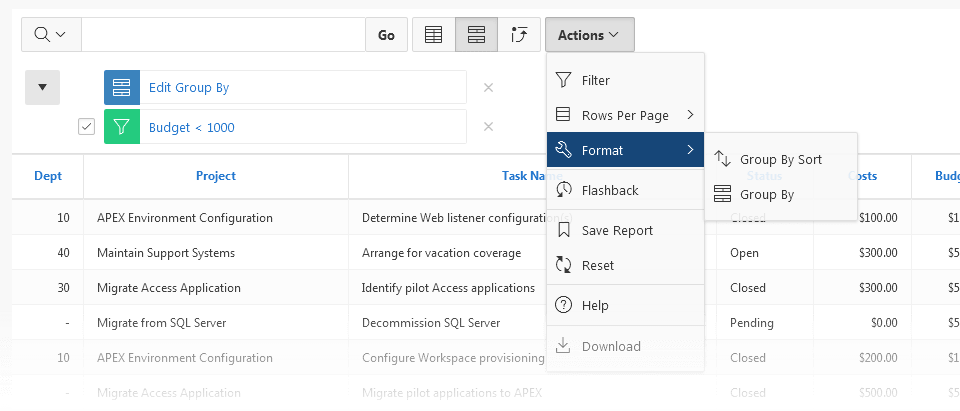
Fig. 9 – Limited Format Options from GROUP BY View
Figure 9 – Group By Limited Format Options
PIVOT
The PIVOT action is a significant new Action. Anyone who has written the SQL for a pivot query with an indeterminate number of columns knows the value of this new feature – all the heavy lifting of building the Pivot query is done automatically for you. Point, click, Apply, and there is your Pivot report. As a reference, links to some common SQL Pivot query solutions are included in the References session of this paper. The old way of achieving a pivot report will not be discussed here.
Figure 10 illustrates the APEX 5 Pivot dialog. Figure 11 shows a pivot view of an IR. Note the Edit Pivot access to edit the pivot view in the control panel, and that Pivot button for toggle between the Pivot report view and other report views that may be defined.
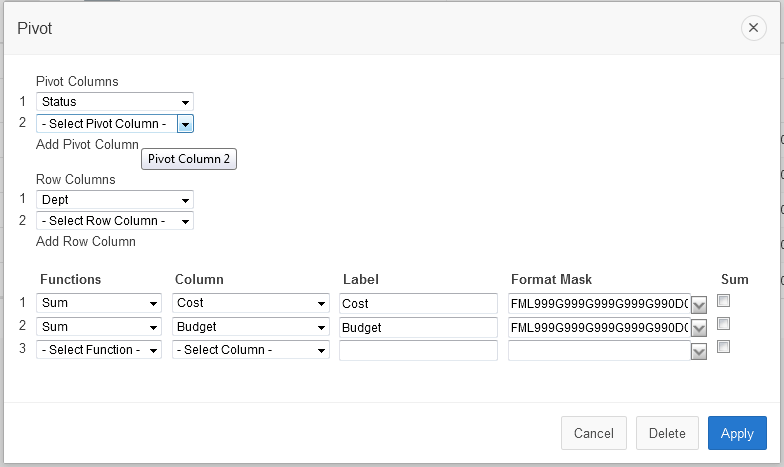
Fig.10 – Pivot Dialog
Figure 10 – APEX 5 PIVOT Dialog
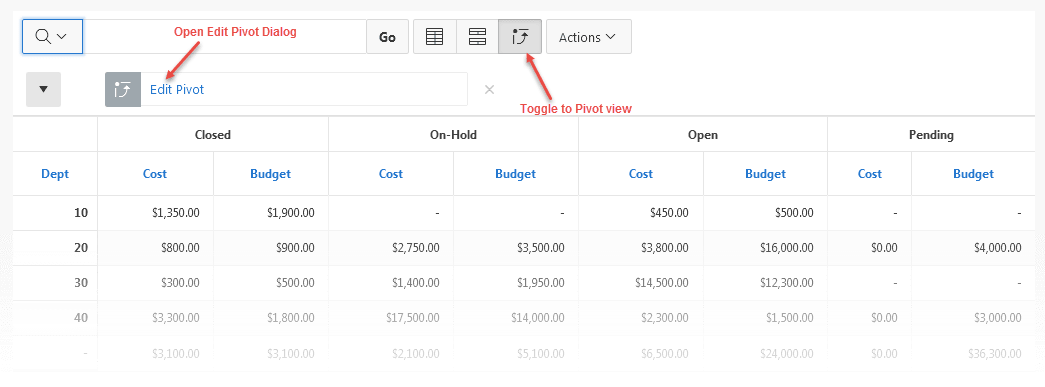
Fig. 11 – PIVOT Options
Figure 11 – APEX 5 IR PIVOT Options
As with other optional report views, formatting options on the Pivot view are restricted, in this case to Pivot and Pivot Sort. Figure 12 shows the limited set of format actions for a Pivot report. As always, the Filter, Rows per Page, Flashback, Save Report, Reset, Help and Download options, if declared and authorized, are still available in the Pivot view.

Fig. 12 – Limited Format Options in PIVOT View
Figure 12 – Limited Format actions in Pivot view
MULTIPLE IRS
Developers may now build “any number” of IRs on one page. This single feature is one of the reasons for the changes in how IR elements are named, – it was essential to do so, so that each IR element is clearly identified. To create multiple IRs on one page, simply create another one using any of the Create Region options. The Create IR wizard used to block this operation – that block has been removed. Create away!
With the improved editing capabilities of the Page Designer, it is easier than ever to create multiple IRs on a single page, as it is very simple to copy (Duplicate) and move regions around on the page.
To copy an IR on the same page, from the Rendering view in the Tree pane, right-click the IR region to copy and then select the Duplicate option. If the new, duplicate region was not created where you want it, select the IR in the Grid Layout pane and start to move it. The objects in the Grid Layout pane will become highlighted in yellow – this indicates you are in the drag-and-drop mode that allows you to drag the selected region to a new location. Drag the selected region around to the desired location and let go.
Hint: You may have to go slow, and be patient with getting the drag-and-drop layout to open up the location you want. Figure 13 shows selection of the Duplicate option from the Rendering pane.

Fig. 13 Duplicate Region Options
Figure 13 – Duplicate Region Option from the Rendering Pane
LINKING
Allowing multiple IRs on one page mandates changes in how filter parameters are passed to an IR in links between pages. The traditional IR filter options of IREQ_<COLUMN_NAME>, etc. shown in Table 1 work for a single IR on a page and will continue to work for the case of a single IR on a page. Applications with links to pages that contain one IR will continue to work upon upgrading to APEX 5. When there are multiple IRs on a page, however, this link syntax changes.
APEX Single IR Link Qualifiers
Single IR Link Qualifier Meaning
IREQ_<column_alias> Equals
IR _<column_alias> Equals
IRLT_<column_alias> <
IRLTE_<column_alias> <=
IRGT_<column_alias> >=
IRGTE_<column_alias> >=
IRLIKE_<column_alias> LIKE
IRN_<column_alias> NULL
IRNN_<column_alias> NOT NULL
IRC_<column_alias> Contains
IRNC_<column_alias> NOT Contains
Note, no BETWEEN, IN and NOT IN options
Table 1 – Single IR Link Filter Syntax
With multiple IRs on a page, the link syntax must distinguish which IR to operate on. To do so, the APEX 5 link syntax for cases of multiple-IRs incorporates the Static Id of the IR, in square brackets, just after the link qualifier:
IREQ[STATIC_ID]_<COLUMN_NAME>
The full list is the same as for single IRs, as shown in Table 2.
Table 2: APEX Multiple IR Link Qualifiers
Multiple IR Link Qualifier Meaning
IREQ[STATIC_ID]_<column_alias> Equals
IR_[STATIC_ID]<column_alias> Equals
IRLT[STATIC_ID]_<column_alias> <
IRLTE[STATIC_ID]_<column_alias> <=
IRGT[STATIC_ID]_<column_alias> >=
IRGTE[STATIC_ID]_<column_alias> >=
IRLIKE[STATIC_ID]_<column_alias> LIKE
IRN[STATIC_ID]_<column_alias> NULL
IRNN[STATIC_ID]_<column_alias> NOT NULL
IRC[STATIC_ID]_<column_alias> Contains
IRNC[STATIC_ID]_<column_alias> NOT Contains
Note, no BETWEEN, IN and NOT IN options
To facilitate passing parameters, it is recommended that the developer declare a Static Id for the IR. If a Static Id is not declared, one will be generated for you in the format R123456789012345 wher 1234567890125 is th assigned static identifier. For this author, it is much easier to remember and use a declared Static Id (one that I define) than to use Inspect Element to dig out the APEX-supplied region identifier. It is simpler and more meaningful to pass references of the format IREQ[EMPS]_DEPTNO, for example, than write references such as IREQ[R1132354054905]_DEPTNO.
WHY MULTIPLE IRS?
One may ask, what is the value of multiple IRs on the same page? The use cases are as many and varied as there are APEX installations. The fact is, users are accustomed to search and filter operations on the report, they want and even expect those features on all of their reports. It is likely when there are multiple IRs on one page the span of actions allowed in each IR will be limited to those that make sense for the particular data set.
It is the developer’s responsibility to design the page and the IRs on it such that the user has exactly the functionality they need, and is not overwhelmed with options.
POSSIBILITIES
Multiple IRs on one page opens up several options not previously possible. Consider building a dashboard of reports, all IRs so that each data set may be configured with chart, group by and perhaps pivot views. Imagine driving the contents of all the IRs with a click on the value of one IR, say, the one in the top left position. Figure 14 illustrates such a scenario.
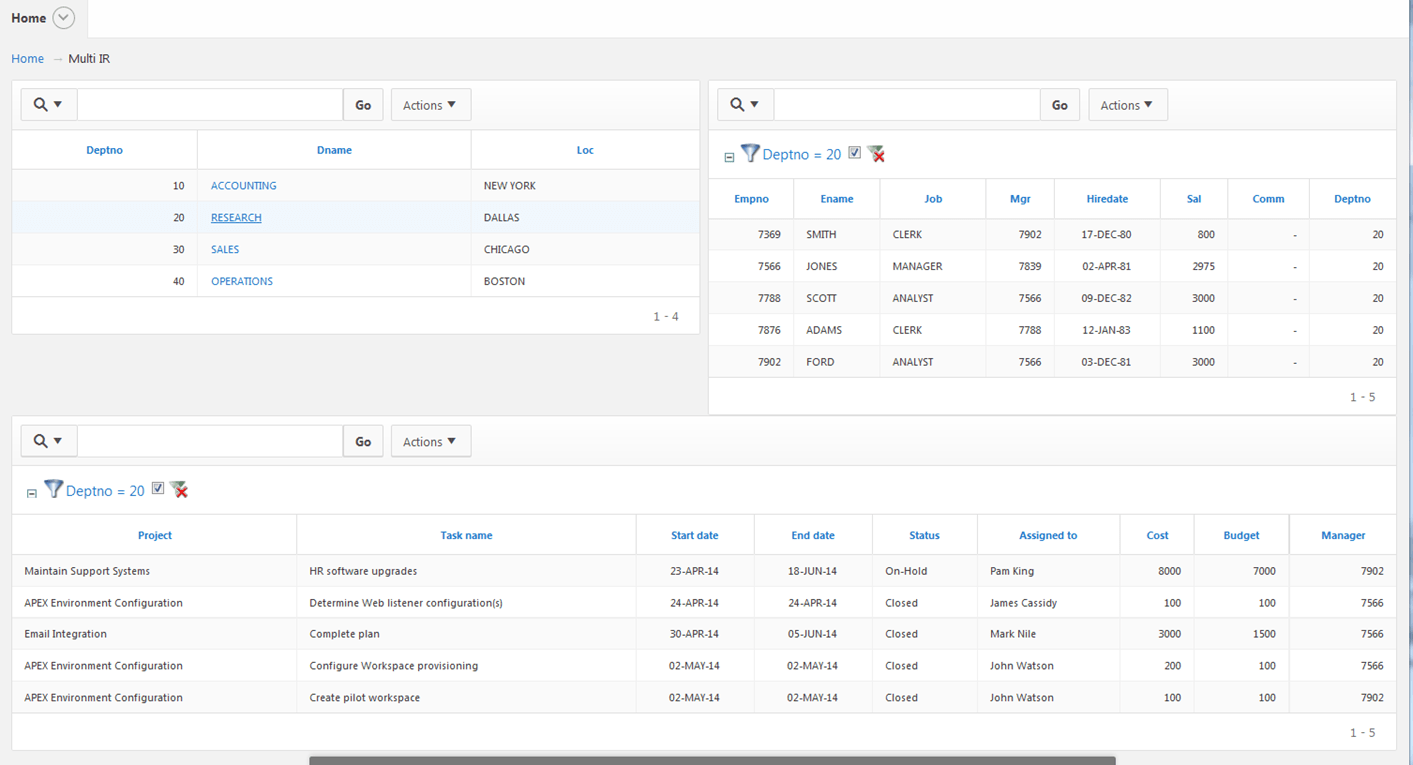 Figure 14 – Multiple IR “Dashboard”
This scenario can be constructed by building multiple IRs on one page, then enabling a link on the Dept column of the top left IR to the DEPTNO columns of the remaining IRs on the page. To do this, edit the Link attribute of the DEPT column of the top left IR, as in Figure 15. The Link attributes region may not readily appear in the column property editor. If it does not, ensure that the column type (at the top of the Attributes panel) is selected as Link. Then the Link attributes region should appear as shown in Figure 15.

Figure 15 – IR Column Link Syntax
Figure 15 – IR Column Link Property Editor
The Link attributes region may not readily appear in the column property editor. If it does not, ensure that the column type (at the top of the Attributes panel) is selected as Link. Then the Link attributes region should appear as shown in Figure 15.

Fig. 6 – Component View from Page Designer
Figure 16 – Component View Icon from Page Designer
An alternative way to set the Link attributes is to revert to the Component Editor, add the column link attributes there, then return to the Page Designer. The column Link attribute section will be there. The Component View can be reached by click on the Component View icon, shown in Figure 16, in the Page Designer top menu.
To return to the Page Designer from Component View use the corresponding Page Designer icon in the top menu bar, as shown in Figure 17.

Fig. 17 – Page Designer from Component View
This same approach of switching to the Component View to perform certain settings, then switching back to Page Designer, is always available and can be helpful during a developer’s transition to to being fully comfortable in Page Designer
CLEAR AND RESET
As with all links to IRs, it is often desirable or necessary to reset the IR to its original or default settings before passing in the next link. There are two options to do this, passed in the Cache position of the APEX URL:
RIR – Resets the IR to the default settings. This is the most frequently used option.
CIR – Clears all IR settings, regardless of the defaults.
A Reset after a Clear will return the IR to its default settings.
A plain RIR or CIR will reset or clear a single IR on a page.
This same syntax will also reset or clear ALL IRs on a page. For example:
f?p=100:10:3629280452177::NO:RIR
will redirect to page 10 of application 100, no debug, resetting the single IR – or all IRs on the page – to the default settings.
To reset or clear only one IR when there are multiple IRs on a page, the syntax is a bit more complicated. The trick is to specify which IR you focusing on using the format IR[STATIC ID] in the Request portion of the APEX URL, followed by the RIR or CIR directive in the Cache portion of the URL. For example:
f?p=100:10:3629280452177:IR[DEPT],IR[EMP]::RIR
Where one IR’s static id is DEPT, and another IRs static id is EMP, this will redirect to page 10 in application 100, reset the IRs with the DEPT and EMP static ids, but will not touch other IRs on the page.
Note that the expected syntax options of [STATIC_ID]RIR and RIR[STATIC_ID] in the Cache portion of the APEX URL do not work. The direction on which IR to operate on must be specified in the Request portion of the APEX URL.
There is always the option to use the APEX_IR API, the CLEAR_REPORT and RESET_REPORT procedures (either signature) in a dynamic action to achieve the desired individual report reset. There is also the option of triggering the APEX-standard apexrefresh event, as described in this article: http://docs.oracle.com/cd/E59726_01/doc.50/e39147/extend_app002.htm#HTMDB30267
Using a command like:
apex.eventtrigger( “#myRegionStaticId”, “apexrefresh”);
All of the Reset and Clear options described in this section are supported.
PART 1 SUMMARY
APEX 5 IRs contain some noteworthy new features for end users and developers. For end users, the most significant of those are the improved look-and-feel, modal dialogs, the enhanced GROUP BY action, the new PIVOT action, and the option for multiple IRs on a single page. For developers, the big new operational change is the Page Designer. This installment covers the highlights of those new and enhanced features.
In Part 2 of this series, we cover the most significant change for developers, the totally revamped APEX 5 IR underlying architecture. Developers who have done customizations on IRs in previous APEX versions may need to refactor their code to follow the new APEX 5 IR structure. With APEX 5, the overall power of APEX IRs has increased, but when it comes to customizations, some upgrade work may be necessary. Stay tuned for Part 2!
REFERENCES
The APEX OTN Forum
AMIS Pivot Implementation for pre APEX 5
